Instagram Notification AI Video Editing Prompt

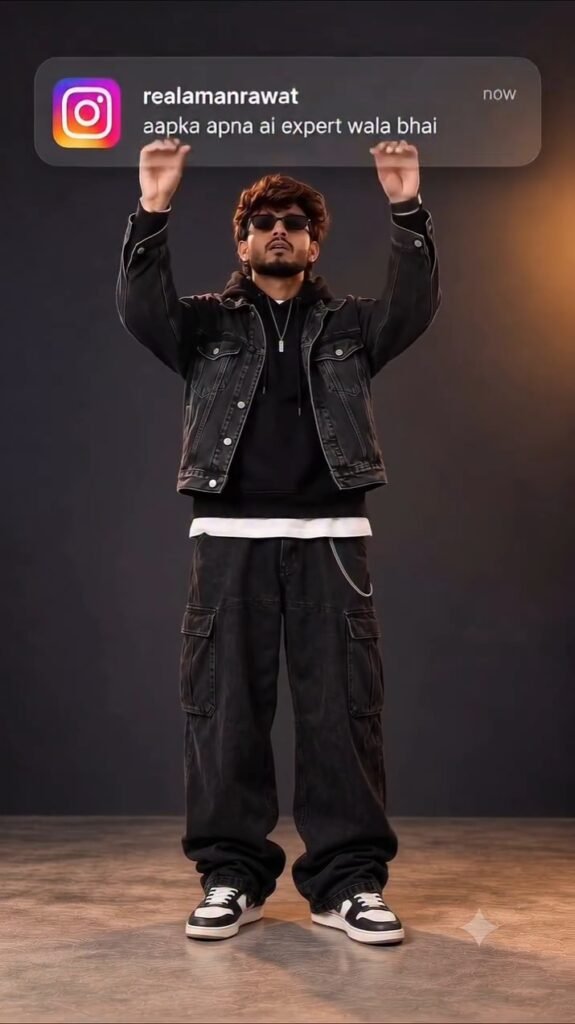
Do you want to create a trending Instagram notification AI video using your own photo? With the help of AI tools like ChatGPT, you can create creative and realistic AI videos that look attractive and unique. This type of Instagram notification video is perfect for Instagram Reels, YouTube Shorts, and other social media platforms.

In this article, you will learn how to create an Instagram notification AI video using a simple prompt and your own photo.

What Is Instagram Notification AI Video Editing?

Instagram Notification AI Video Editing is a creative way to turn your normal photo into an eye-catching AI-generated video inspired by Instagram notifications. You can create unique visual effects and use them to make engaging short videos for your social media audience.

These videos are useful for content creators who want to try new AI editing trends and make their reels more interesting.

How to Create an Instagram Notification AI Video

Follow these simple steps to create your own Instagram notification AI video.

Step 1: Open ChatGPT

First, open ChatGPT on your mobile phone or computer. Upload your photo and prepare the Instagram notification AI video prompt.

Step 2: Copy and Paste the AI Prompt

Copy the Instagram notification AI video prompt and paste it into ChatGPT or a compatible AI video generation tool. Make sure your prompt includes the visual style and effects you want.

Step 3: Generate Your AI Video

Submit the prompt and let the AI tool generate your video. Depending on the tool, you may need to use an image-to-video feature to animate your photo.

Step 4: Download and Share

Once your video is ready, download it to your device. You can share it on Instagram Reels, YouTube Shorts, or other social media platforms.

Best Instagram Notification AI Video Prompt

You can use the following sample prompt to create an Instagram-inspired AI video.
◀ OSM TEMPLATE
Edit the uploaded reference image by adding a realistic Instagram notification card to the existing photograph. The final result must look like the original photograph with a notification naturally overlaid onto it, not a newly generated or recreated photograph. 1. STRICT ORIGINAL IMAGE PRESERVATION Use the uploaded photograph as the base image. Preserve the person’s exact identity, face, facial features, skin texture, beard, hairstyle or turban, expression, and body proportions. Keep the original outfit, accessories, pose, hand gestures, and body position unchanged. Preserve the original background, location, objects, lighting, brightness, contrast, shadows, colors, and photographic atmosphere. Maintain the original image dimensions, aspect ratio, framing, and camera perspective. Do not regenerate, beautify, retouch, reposition, or restyle the person. Do not change any part of the original photograph except for adding the notification card. The only intended modification is the addition of one Instagram notification card. 2. DYNAMIC NOTIFICATION CONTENT Create one realistic Instagram-style notification card using the two user-provided placeholders. Username: [ENTER_INSTAGRAM_ID_HERE] Notification message: [ENTER_NOTIFICATION_MESSAGE_HERE] Timestamp: now App icon: Instagram’s recognizable gradient icon with the white camera symbol. Dynamic text replacement rules Replace [ENTER_INSTAGRAM_ID_HERE] with the exact Instagram ID provided in the USER INPUT section. Replace [ENTER_NOTIFICATION_MESSAGE_HERE] with the exact notification message provided in the USER INPUT section. Preserve capitalization, spelling, punctuation, numbers, emojis, and special characters in both inputs. Never display the placeholder names in the final image. Never substitute a default message such as “This can be a HOOK” when the user has supplied a different message. Do not add quotation marks around the username or message. Do not invent, rewrite, translate, summarize, or correct the user’s custom message. 3. NOTIFICATION PLACEMENT AND SIZE Position the notification in the upper portion of the photograph, directly above the person’s head. Keep it relatively close to the head while maintaining a clearly visible gap. Ensure the card does not touch or overlap the person’s head, hair, turban, hands, or other body parts. If the person raises a hand, position the card high enough to avoid the hand completely. Make the card large, prominent, and readable on a mobile screen. Use approximately 75–90% of the image width, adjusting to the original photograph’s composition. Keep the entire notification inside the image boundaries. Adjust the card’s height and text layout to accommodate longer custom messages without clipping or overlapping text. 4. NOTIFICATION DESIGN Create a horizontal, rounded rectangular notification banner inspired by modern smartphone notifications. Translucent grayish-purple background. Subtle background blur and realistic transparency. Rounded corners and professional spacing. Instagram gradient icon positioned on the left. Username displayed in bold white text. Custom notification message displayed beneath the username in clean white text. Timestamp now aligned toward the right side. Crisp typography, accurate text, and balanced proportions. The notification must resemble a genuine smartphone notification captured in a photograph, not a poster, sticker, or floating 3D object. 5. DYNAMIC MESSAGE FITTING The notification message can be anything the user chooses. Automatically adjust the notification’s internal spacing and height to fit the message. Keep the username and message visually distinct. Use natural line wrapping for longer messages. Maintain readable font sizes and adequate padding. Do not crop, omit, truncate, or alter any supplied message text. If necessary, use two or more lines for a longer message while keeping the notification visually balanced. Keep the timestamp visible without overlapping the username or message. 6. REALISTIC INTEGRATION Match the card’s translucency and softness to the original photograph. Keep the text sharp and legible. Allow the card to overlay the background naturally. Never cover the person’s face, head, hands, or other important parts of the subject. Preserve all original photographic details outside the notification area. 7. STRICT NEGATIVE INSTRUCTIONS Do not change the person’s identity, face, turban, clothing, pose, body, or expression. Do not change the original location, background, lighting, colors, brightness, contrast, or composition. Do not add extra notifications, logos, captions, watermarks, borders, or decorative elements. Do not invent a username or notification message. Do not display placeholder text in the final image. Do not misspell, rewrite, or omit any supplied text. Do not place the notification over the person’s head or hands. FINAL OUTPUT Return one high-resolution, photorealistic edited image that preserves the original photograph and adds one large, realistic Instagram notification above the person’s head. The notification must display the exact Instagram ID and custom message supplied in the USER INPUT section.
◀ OSM TEMPLATE
The man brings his hands up to hold the notification card and crumples the notification card into a paper ball and throws it out of the frame

Note: This is a sample prompt. Results may vary depending on the AI tool you use.

Tips for Creating Better AI Videos

Use a clear, high-quality photo for better results.

Write detailed prompts to describe the animation and visual effects.

Choose a 9:16 aspect ratio for Instagram Reels and YouTube Shorts.

Use smooth transitions and suitable background music when editing.

Preview your video before uploading it to social media.

Conclusion

Instagram Notification AI Video Editing is a fun way to experiment with AI-powered content creation. By using your own photo, a suitable AI prompt, and an image-to-video tool, you can create attractive videos for your social media accounts. Try the prompt above and create your own Instagram notification AI video. Keep experimenting with different styles and effects to make your content stand out.


Leave a Reply

Your email address will not be published. Required fields are marked *